Adding more columns when viewing customers – Reseller portal
When
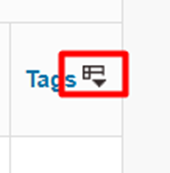
viewing your customers in the reseller portal, there is drop down to the right
so you can add or remove more columns, showing you more information. Select
this button on the right of your screen:
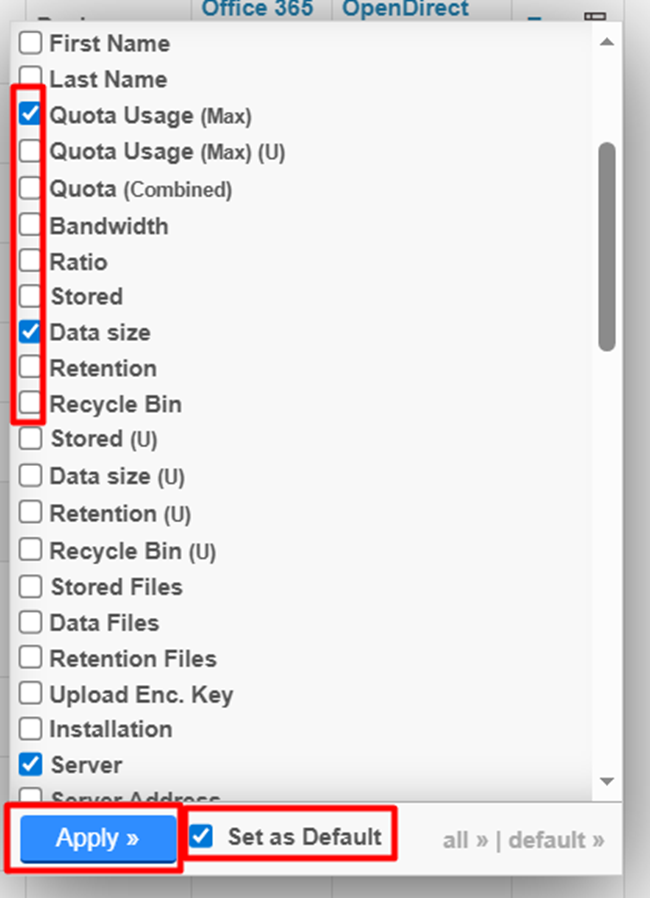
From
here you can select or deselect what columns you want to view, and “set as
default” if you want them there for your login all the time, just make sure you
press “Apply”.
Related Articles
View your customers – Reseller portal
Login to your partner portal, along the top you’ll see “customers” hover over this and you will be able to select which product you want to see customers for. You will then be shown a list of all of your accounts. If the name is in red and crossed ...Creating an account as a reseller - Cloud Backup PLUS
Cloud Backup PLUS is the name we have given to to the reseller version of our new product SAFE Backup PLUS. To create an account on Cloud Backup PLUS for one of your clients, please login to your portal. The default address for this can be found here ...Download Cloud Backup client from the portal.
Please note: This will only show you downloads for the Cloud Backup product. For assistance with other products please contact us on support@safedatastorage.co.uk, call on 01689 661 030, or you can use the chat function bottom right of this screen. ...Adding modules for Cloud Backup Accounts – Cloud Backup
From inside the portal you can add modules for your Cloud Backup accounts. Search for the account via the search function on the right, or go to “Customers” on the left and select “View Cloud Backup” customers. When on their account select the ...Creating a backup for a customer – Cloud Backup
Login to your backup portal (https://partners.onlinedatastorageuk.co.uk/ - unless you have you own branding added) and go to “customers” on the left then “Add Customer”. You will then need to select the plan, for Cloud Backup PLUS please see this ...