Change a login password – Cloud Backup
NOTE:
Changing the password will NOT change the encryption key. If you are resetting
it to able login, it is advisable to unmask the encryption key and
then reset the password in
the client to match the key, if you have them the same normally. Login to your
portal and search for the customer you want to change this for, either in
“customers” top left, or the search function top right.
On the
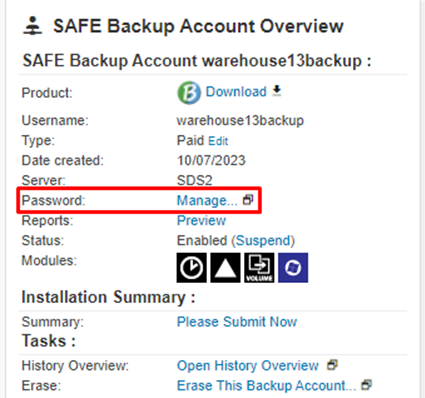
customer page, on the right hand side in the Account Overview section, you will
see “Password” with “Manage” next to it, click on “Manage” to reset the
password.
In order to
reset it, you will need to enter YOUR PORTAL password first.
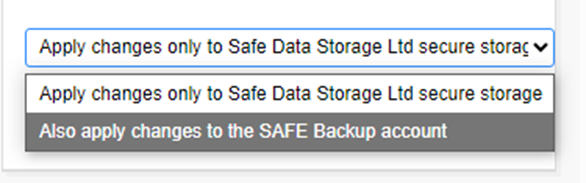
Change the
dropdown to “Also apply changes to the SAFE Backup account” (will say a
different name is you have branding).
Enter
the new password and press the blue button when ready.
You
will get a message that this has been updated.
Related Articles
Resetting your customers password – Cloud Backup PLUS
PLEASE NOTE: you will only be able to do this if the option was select when the account was created, or if “Allow to reset my password” is selected on the backup client on the end user machine, this is in Settings>Account. Login to your reseller ...
Creating an account as a reseller - Cloud Backup PLUS
Cloud Backup PLUS is the name we have given to to the reseller version of our new product SAFE Backup PLUS. To create an account on Cloud Backup PLUS for one of your clients, please login to your portal. The default address for this can be found here ...
Downloading and Installing the client as a reseller - Cloud Backup PLUS
Cloud Backup PLUS is the name we have given to the reseller version of our new product SAFE Backup PLUS. Once you have created the account for your customer, you will need to download and install the client on their machine. Please connect to your ...
Download Cloud Backup client from the portal.
Please note: This will only show you downloads for the Cloud Backup product. For assistance with other products please contact us on support@safedatastorage.co.uk, call on 01689 661 030, or you can use the chat function bottom right of this screen. ...
Change the vault for a protected item on the installed client – Cloud Backup PLUS
If you have created a new vault for an existing protected item you will need to ensure you assign that vault to the new item. NOTE: If you do this and are no longer needing that vault please remove it, we would advise to wait for the duration of your ...